How to dismiss flutter dialog?
To check how to use GetX in Flutter, execute the command below to create a new Flutter project.
flutter create dialog
And then, execute the command below to install the GetX package.
flutter pub add get
Next, let’s see how to use GetX to show Dialog.
Open Dialog
You can use the Get.dialog function to show Dialog with GetX like the below.
Get.dialog(
  AlertDialog(),
);
To check this, open the lib/main.dart file and modify it like the below.
import 'package:flutter/material.dart';
import 'package:get/get.dart';

void main() {
  runApp(const MyApp());
}

class MyApp extends StatelessWidget {
  const MyApp({Key? key}) : super(key: key);

  @override
  Widget build(BuildContext context) {
    return GetMaterialApp(
      title: 'Flutter Demo',
      theme: ThemeData(
        primarySwatch: Colors.blue,
      ),
      home: const MyHomePage(),
    );
  }
}

class MyHomePage extends StatelessWidget {
  const MyHomePage({Key? key}) : super(key: key);

  void openDialog() {
    Get.dialog(
      AlertDialog(
        title: const Text('Dialog'),
        content: const Text('This is a dialog'),
        actions: [
          TextButton(
            child: const Text("Close"),
            onPressed: () => Get.back(),
          ),
        ],
      ),
    );
  }

  @override
  Widget build(BuildContext context) {
    return Scaffold(
      appBar: AppBar(
        title: const Text("Dialog"),
      ),
      body: Center(
        child: Column(
          mainAxisAlignment: MainAxisAlignment.center,
          children: [
            const Text('Dialog example'),
            OutlinedButton(
              onPressed: openDialog,
              child: const Text('Open'),
            )
          ],
        ),
      ),
    );
  }
}
When you execute the above code, you will see the following screen.
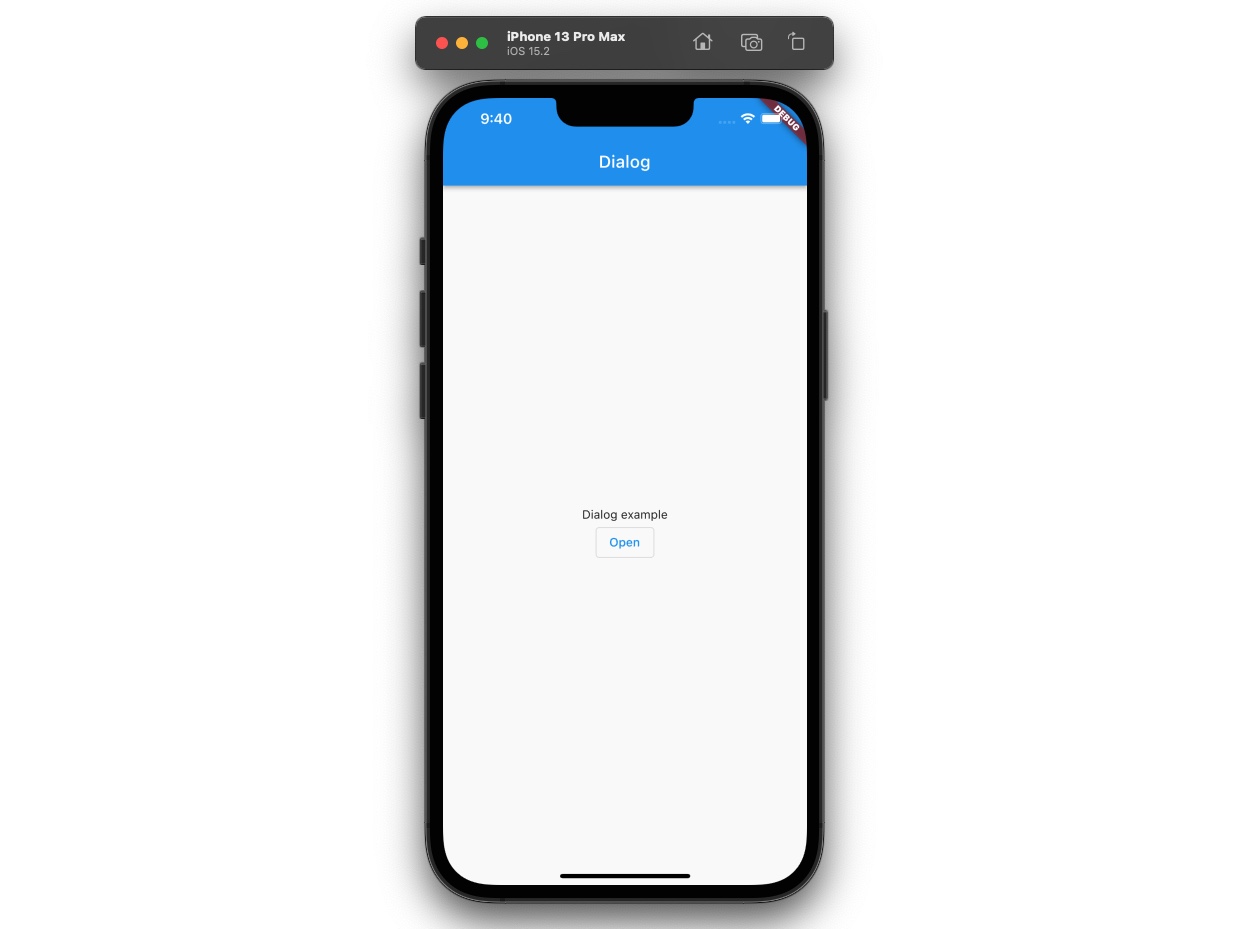
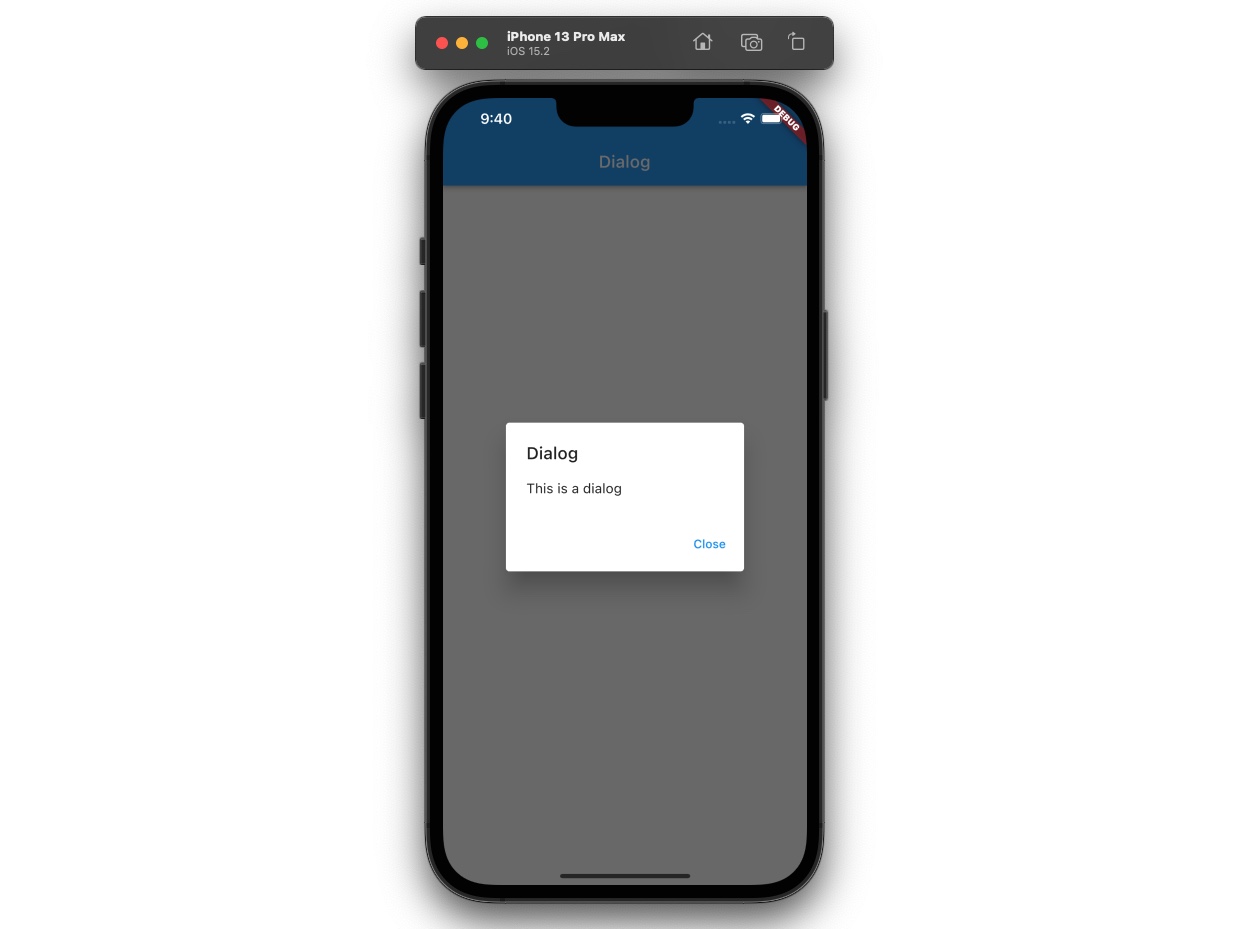
And then, when you press the Open button, Get.dialog is called like the below.
void openDialog() {
  Get.dialog(
    AlertDialog(
      title: const Text('Dialog'),
      content: const Text('This is a dialog'),
      actions: [
        TextButton(
          child: const Text("Close"),
          onPressed: () => Get.back(),
        ),
      ],
    ),
  );
}
After that, you can see the dialog like the below.
Comments
Post a Comment